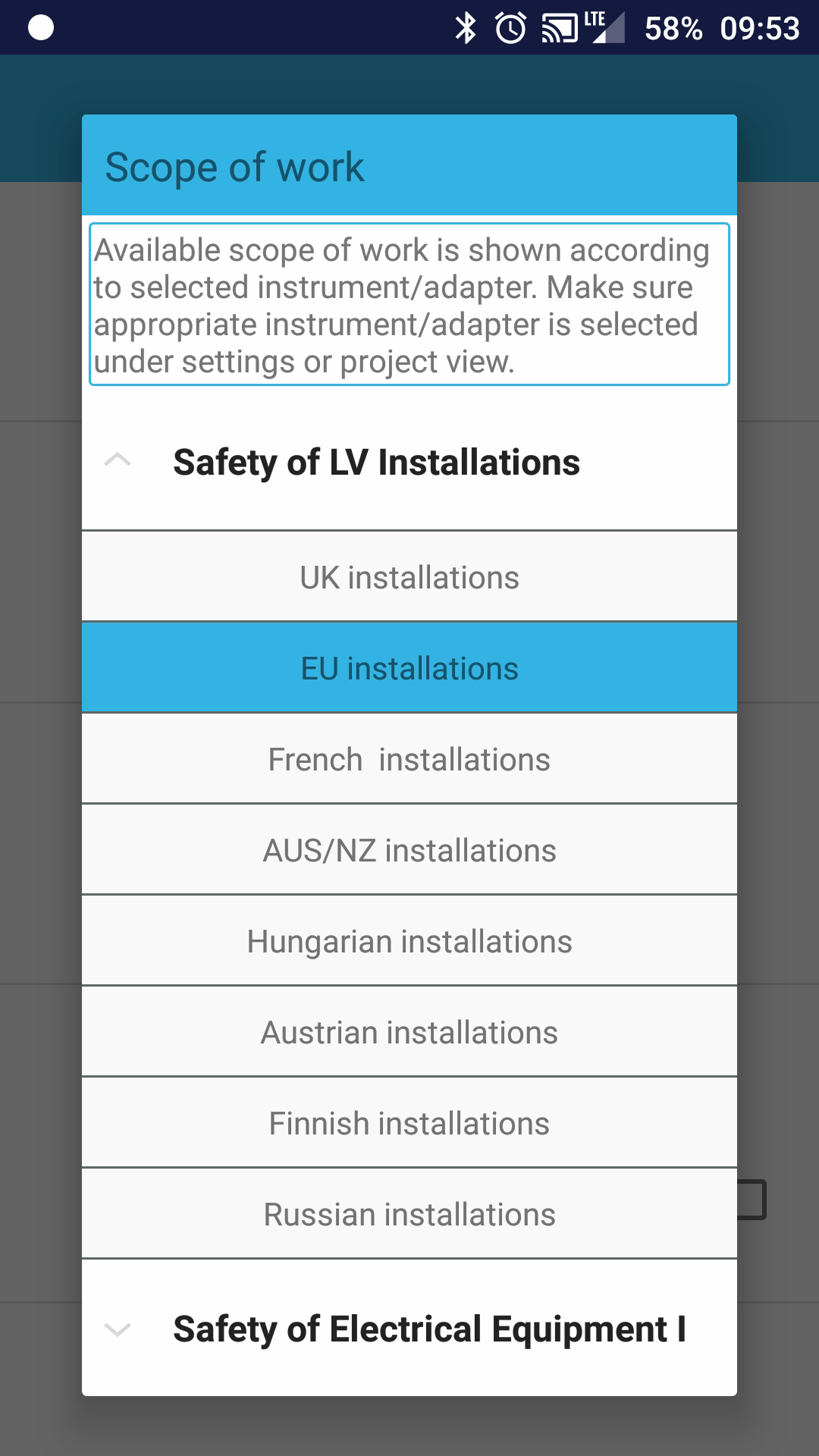
First use
Pair the Metrel installation test instrument with your Android device
- Turn on the Metrel installation test instrument
- Go to Settings on your Android
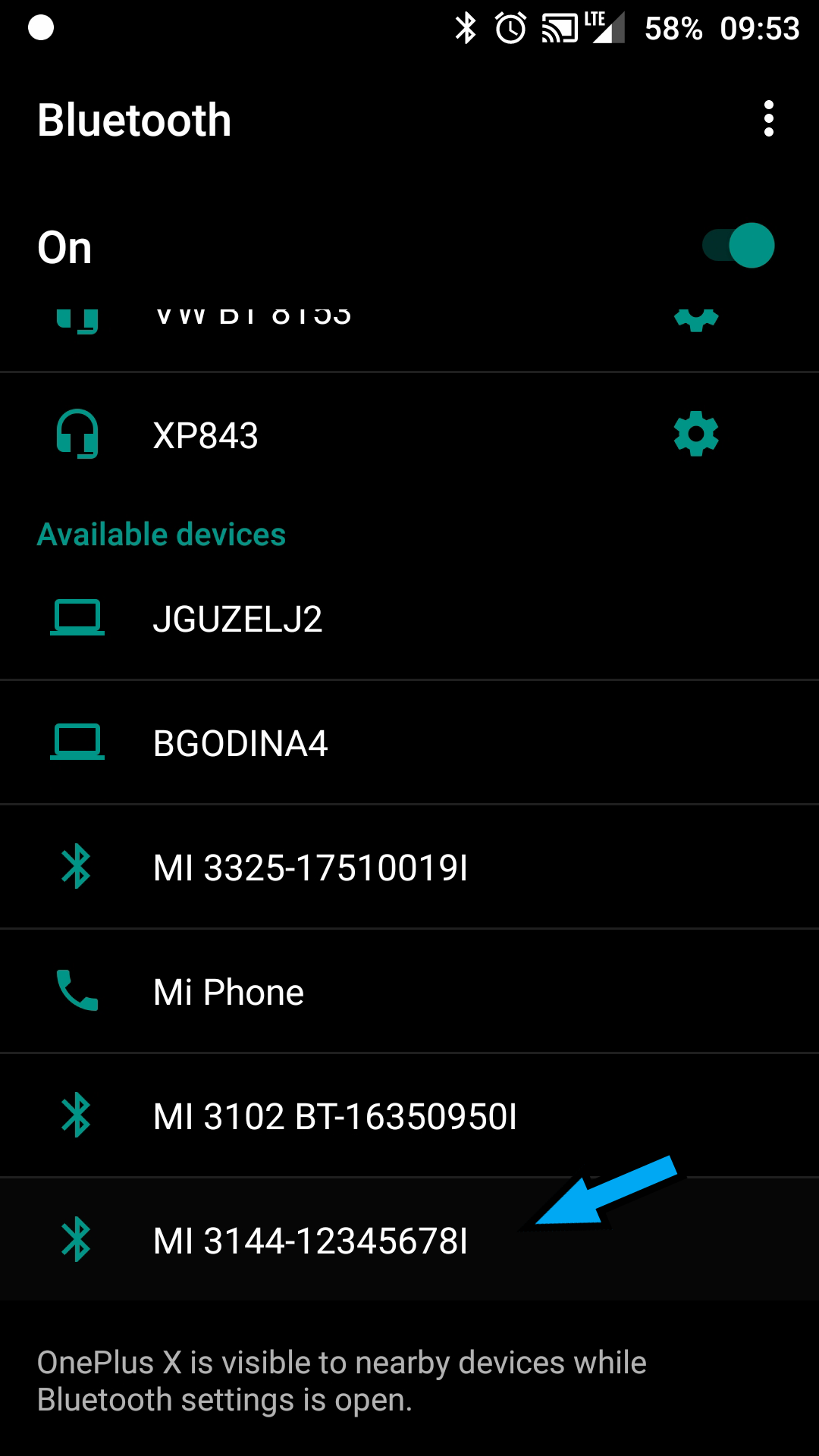
- Scan for Bluetooth available devices on your Android device
- Select the correct instrument for pairing
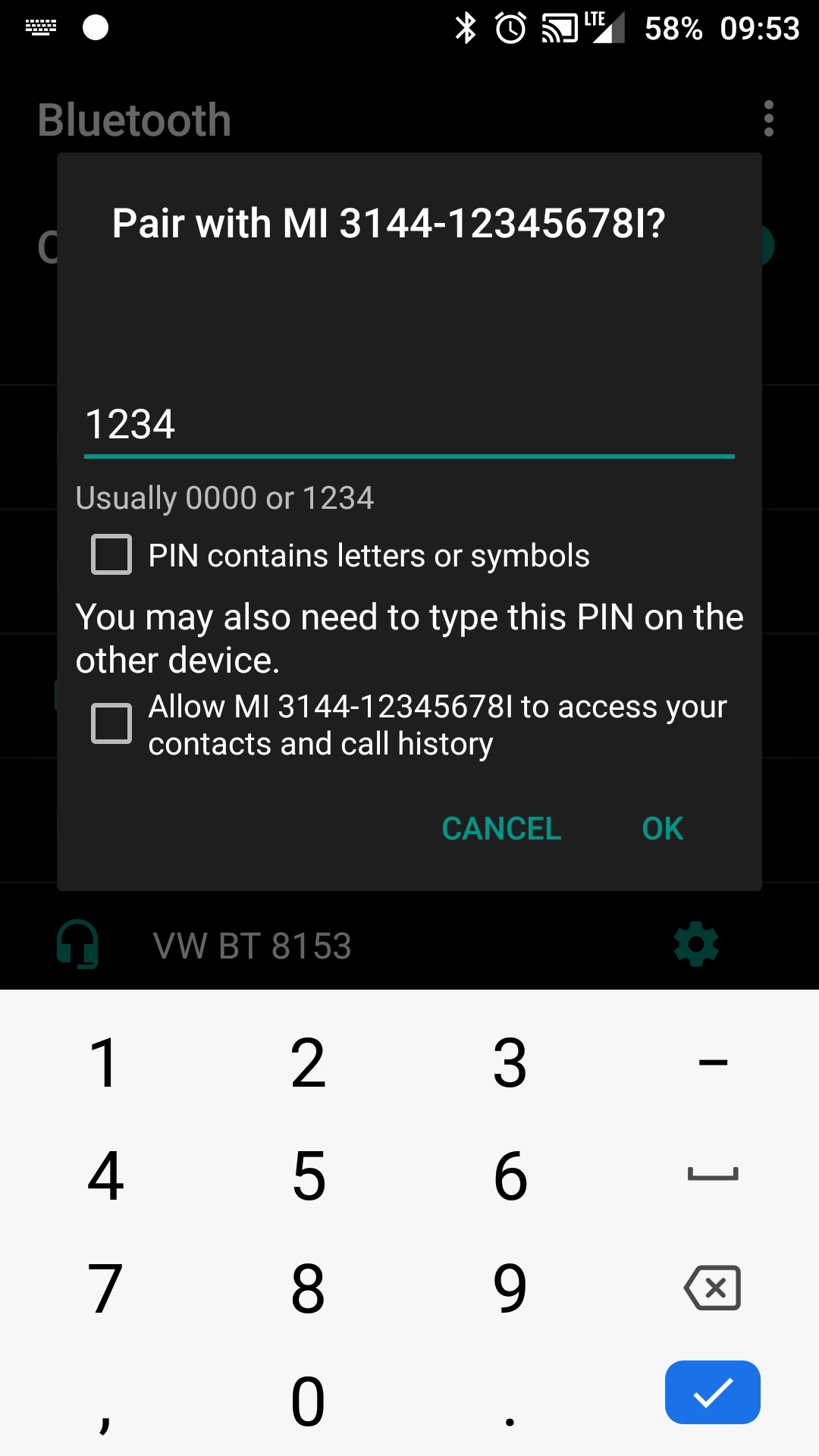
- Use the default PIN 1234 to pair
Enter license key
- Open aMESM
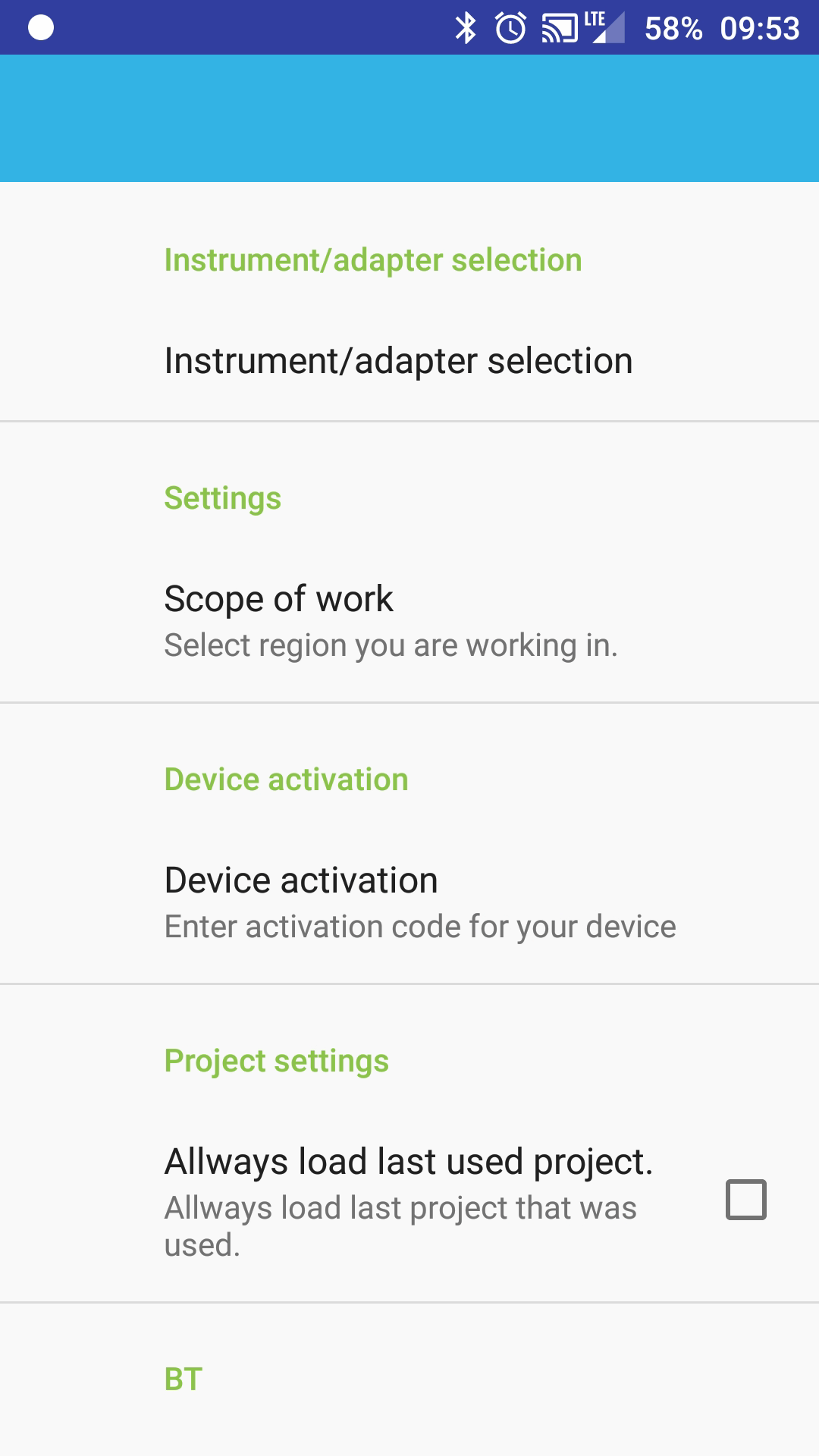
- Select "Settings"
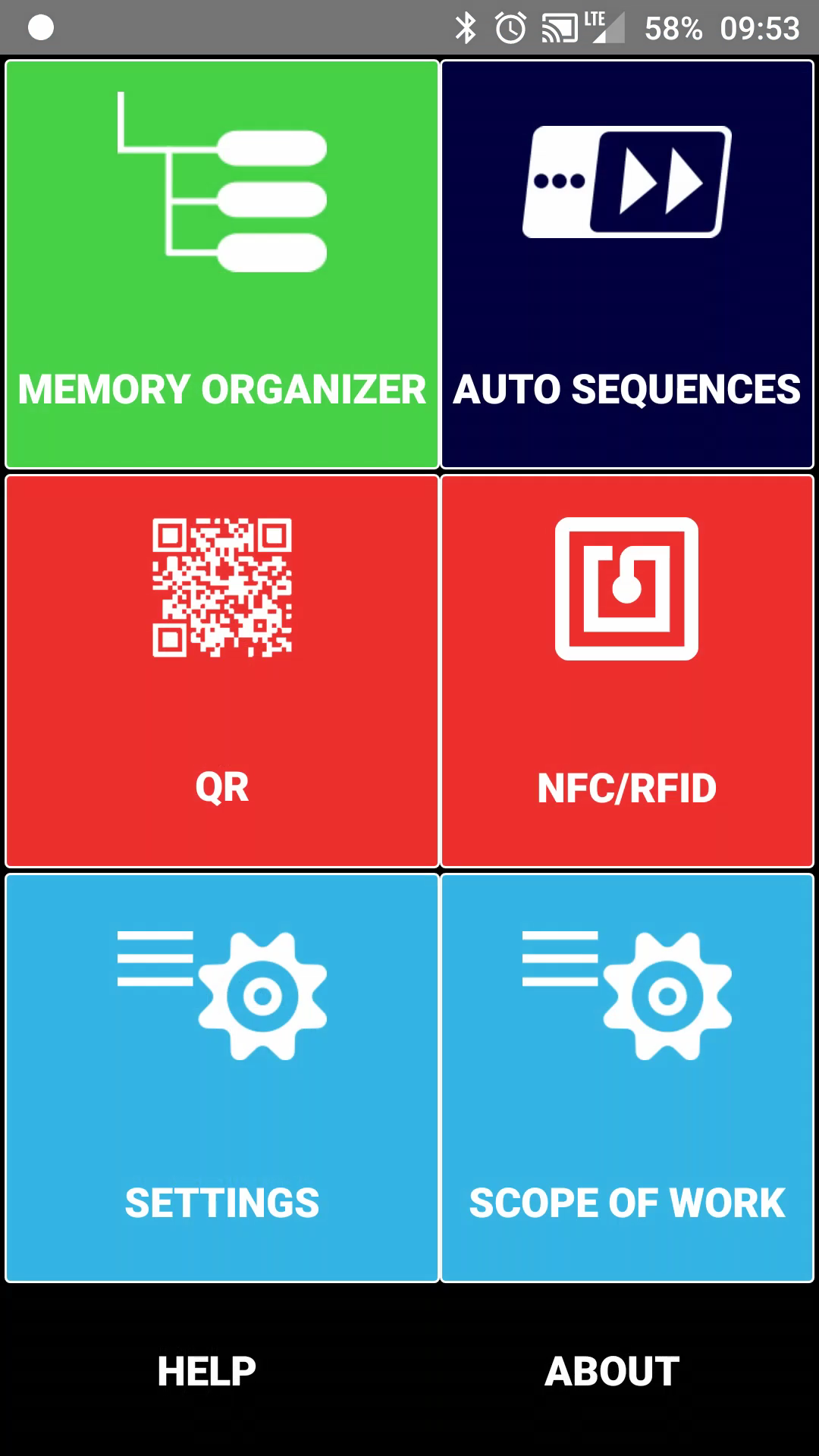
3. Select "Device Activation"
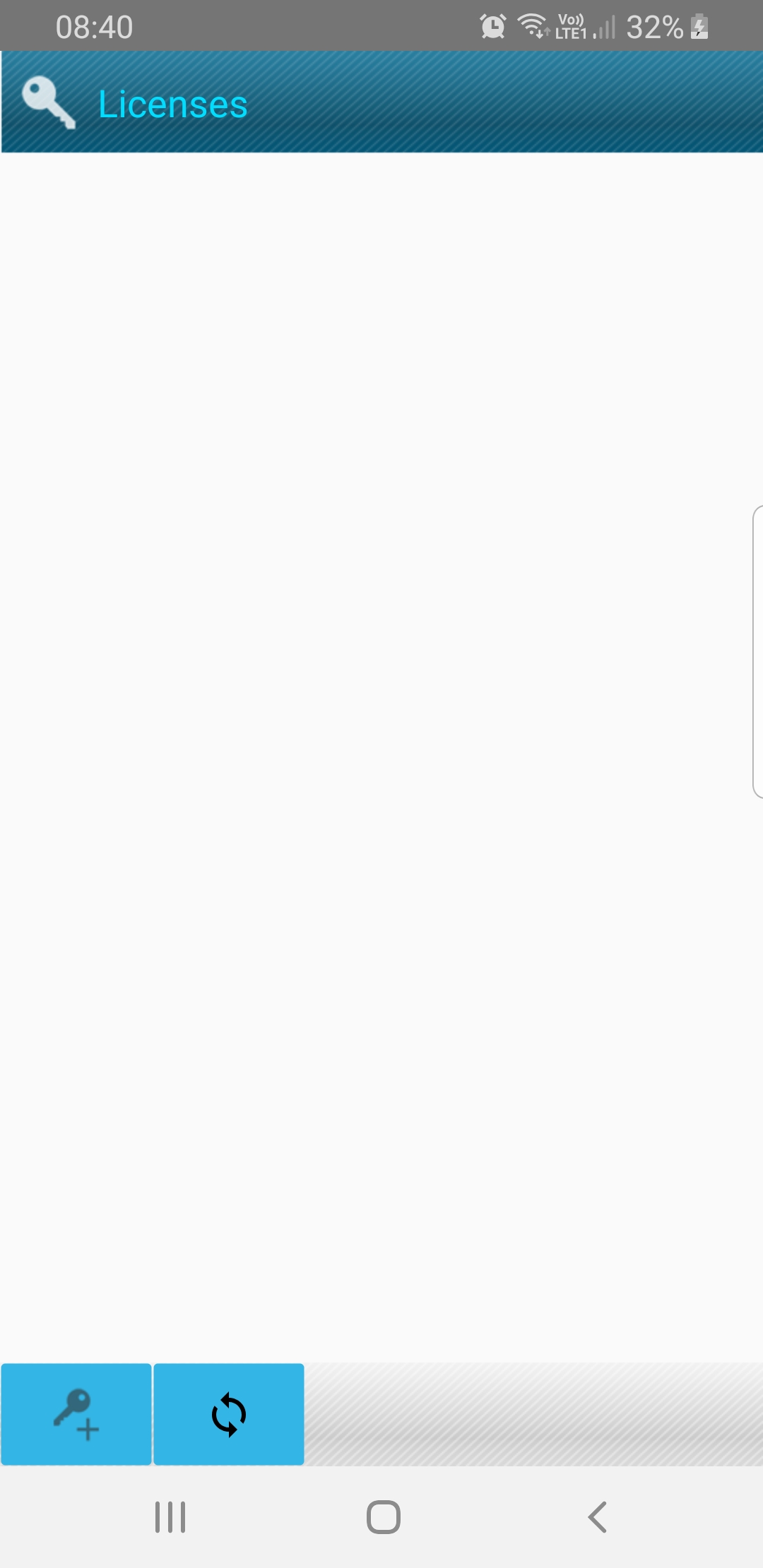
- 4. Click on the key button
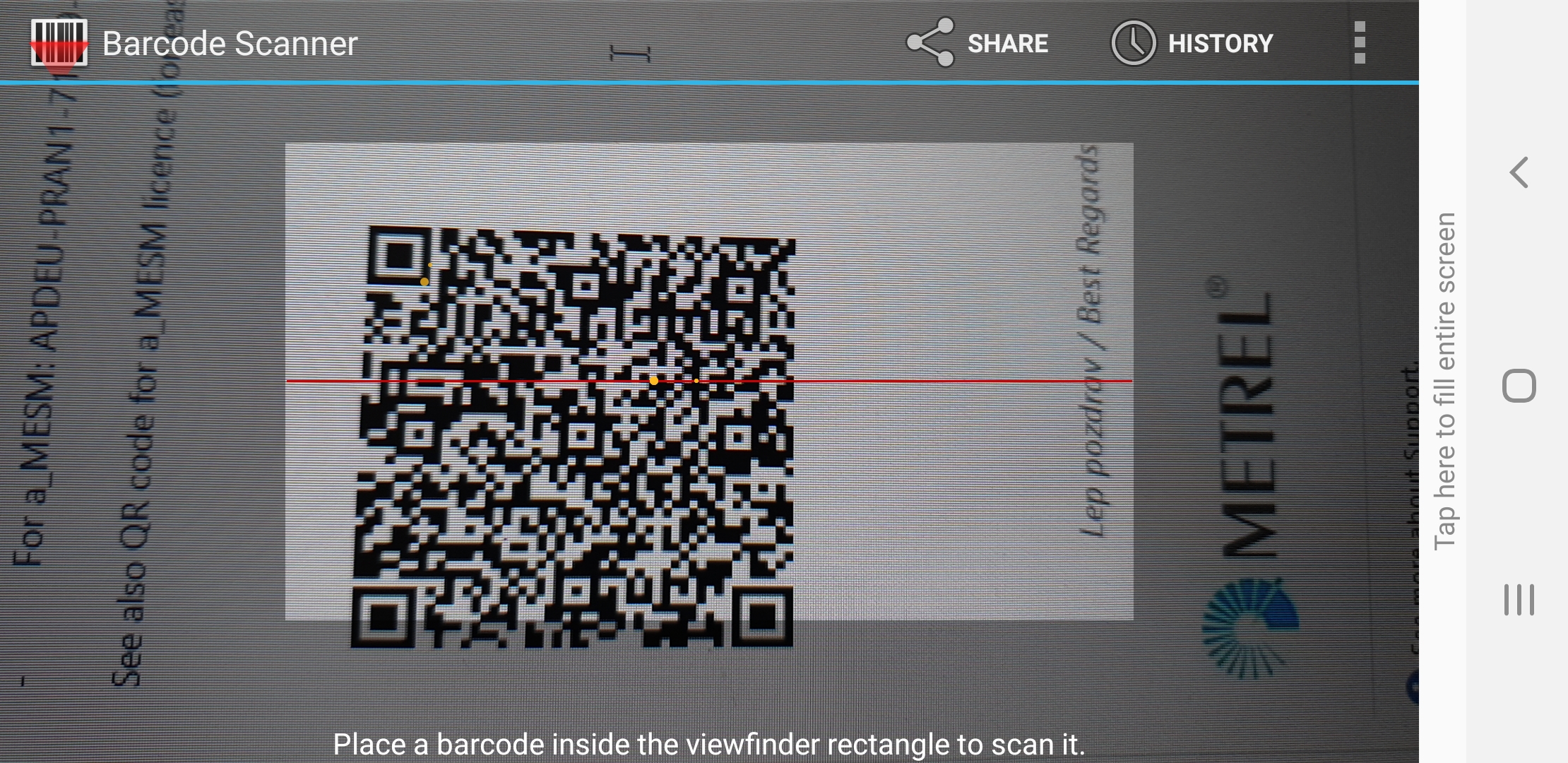
5, Select the Barcode button and scan your license a.k.a QR code in the email received message/printed page or enter manually the license
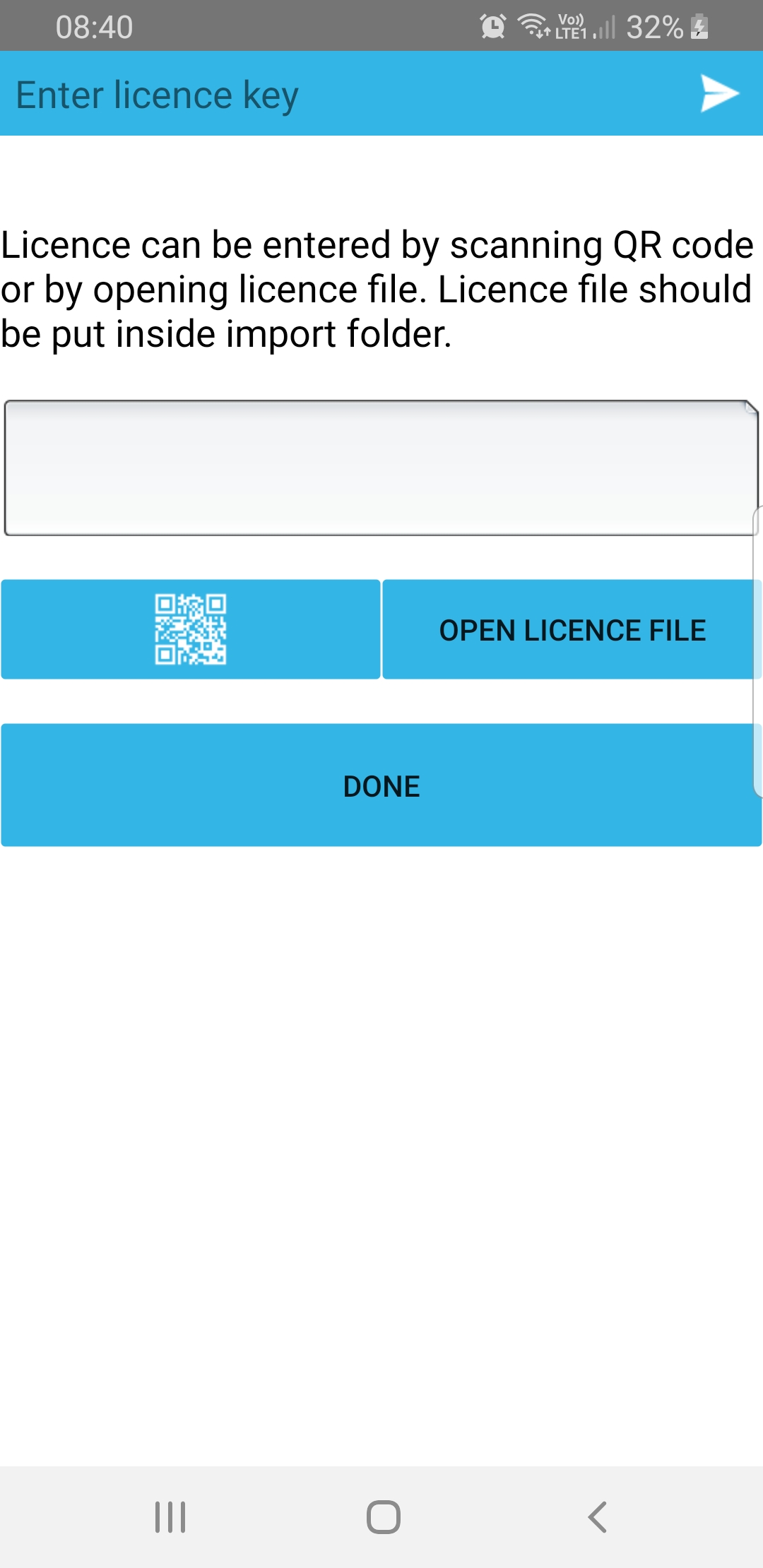
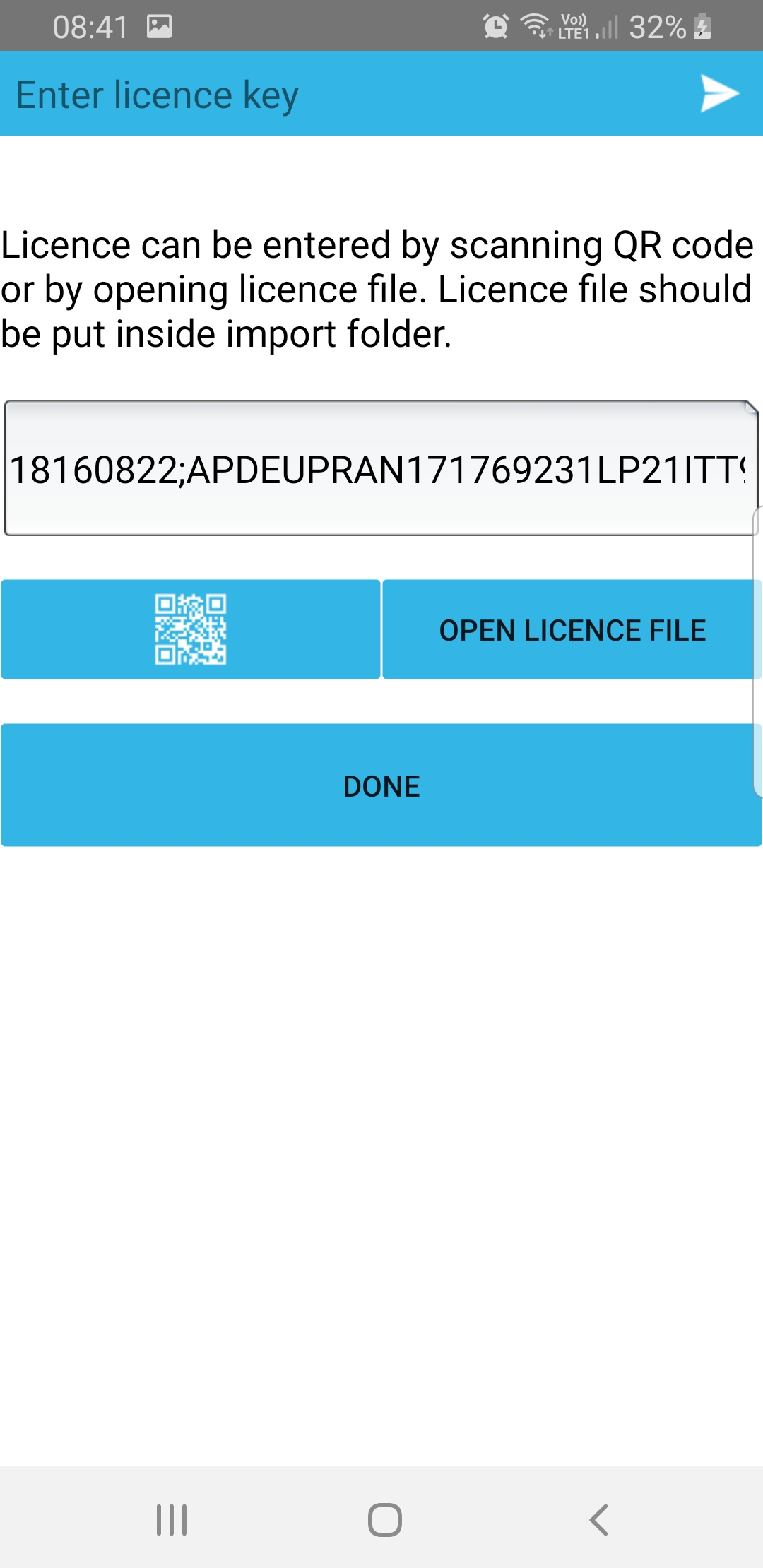
6. Click "Done"
7. You should now be able to connect your Metrel installation tester with the Android App aMESM.
aMESM initial settings
- Open aMESM
- Select "Settings"
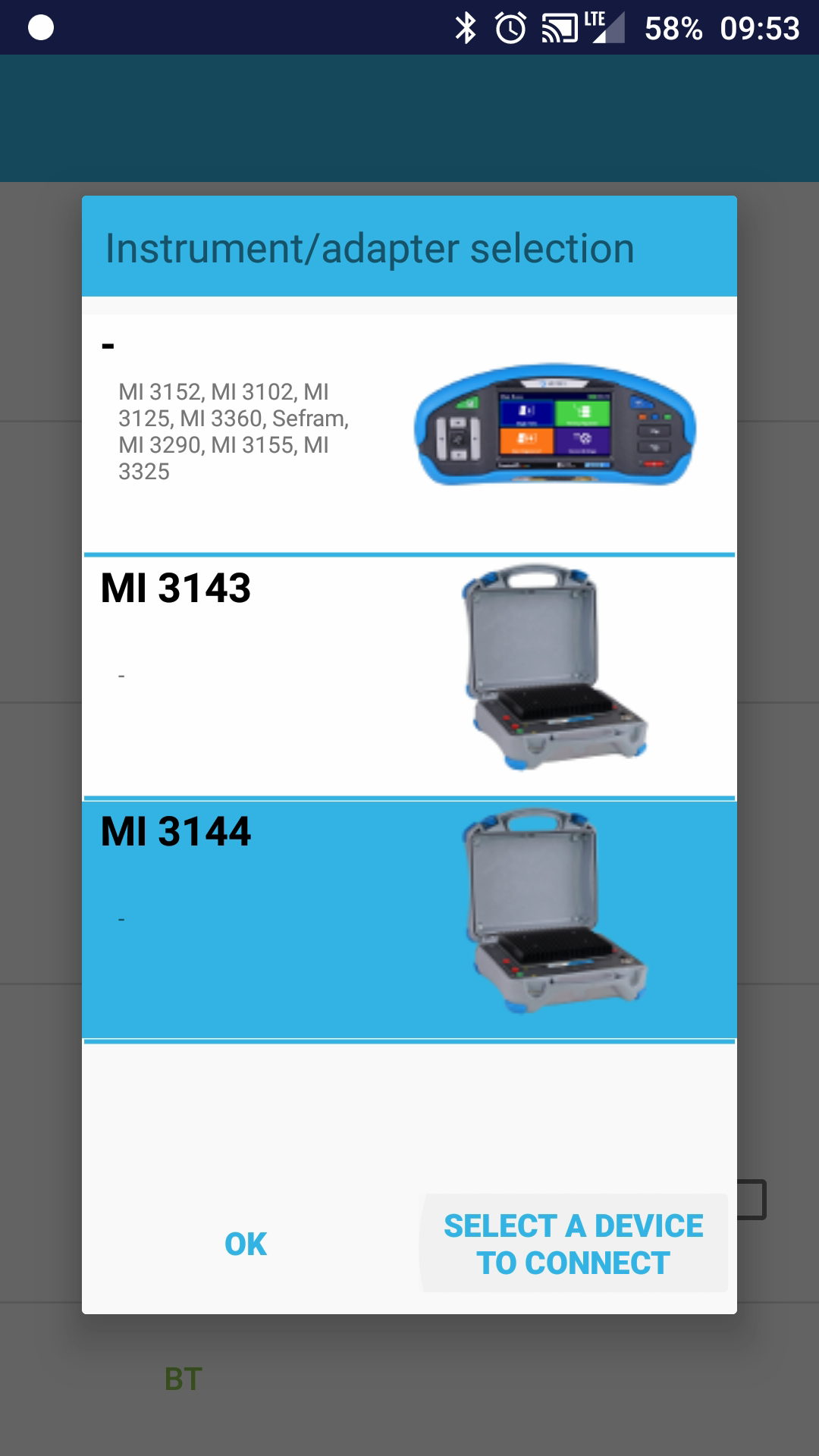
3. Select "Instrument/adapter selection"
- Choose appropriate installation tester
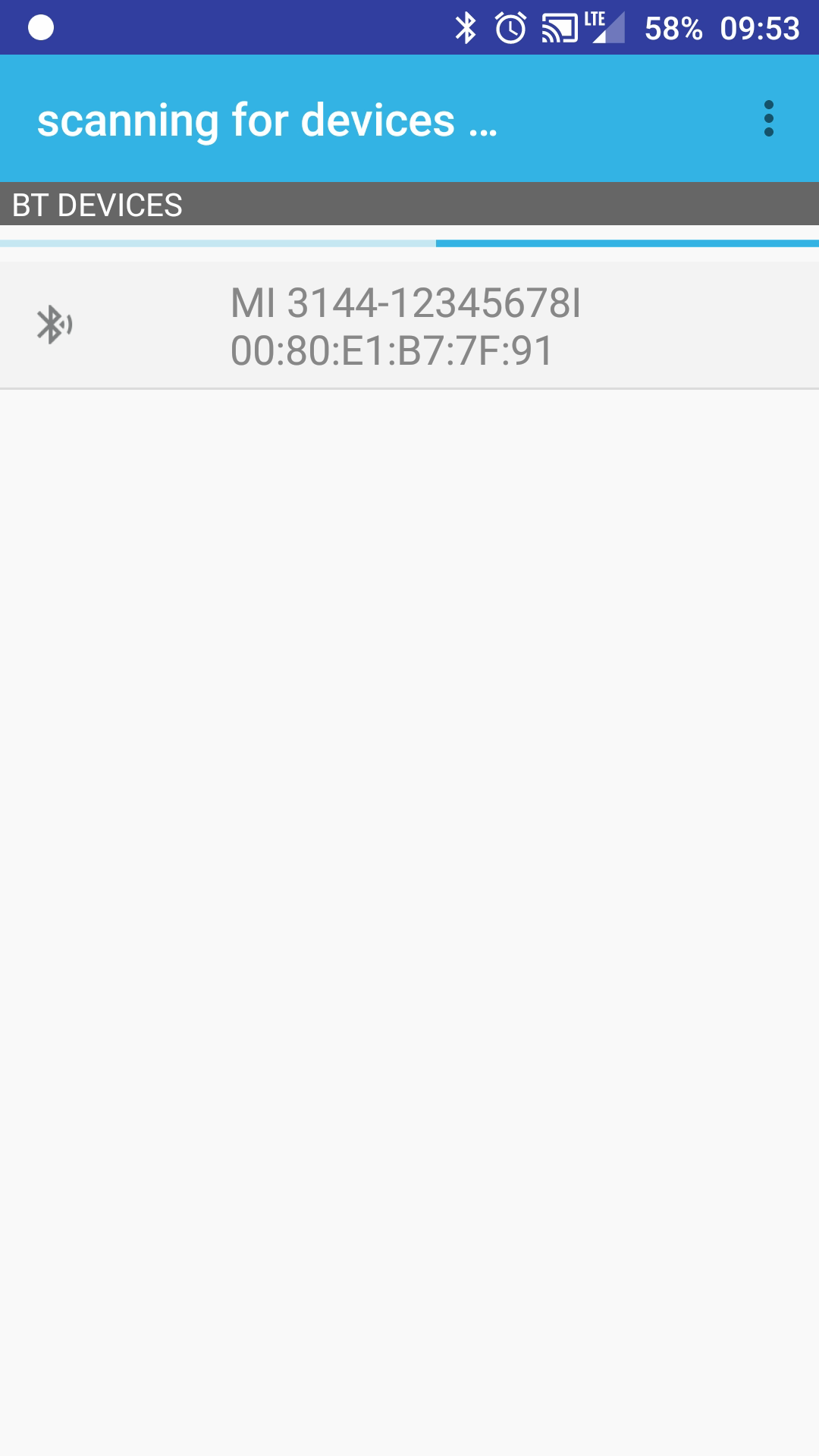
- Click on "Select a device to connect" and choose the one with your serial number
- Click "OK"
4. Select "Scope of work"
- Select your workscope
- Example: "Safety of LV installations" → EU installations
5. Go back